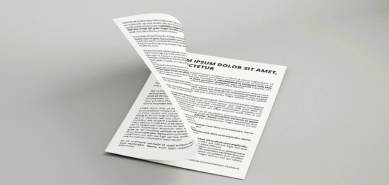
Letter

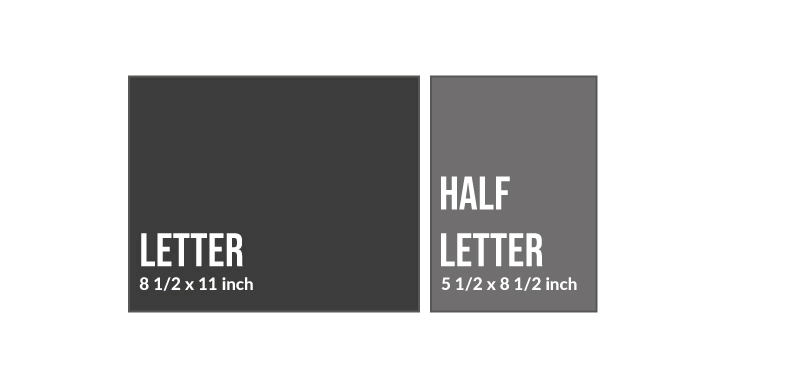
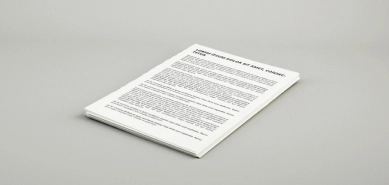
Dimensions: 8.5 x 11 inches. This is the most commonly used paper size and the ideal format for printing notes, official documents, and more.

Half Letter

Dimensions: 5.5 x 8.5 inches. Exactly half the width of a Letter sheet, it’s ideal for printing planners, notebooks, and similar materials.

Standard

80 gsm paper. Its brightness, silky feel, and weight make it the ideal paper for printing your notes, personal documents, and more.

High Quality

100 gsm paper. Thicker and whiter than standard paper, it’s the ideal choice for printing higher-quality documents like presentations or reports. If you need to print double-sided documents with heavy color use, this paper prevents any ink from showing through.

Single-Sided Printing

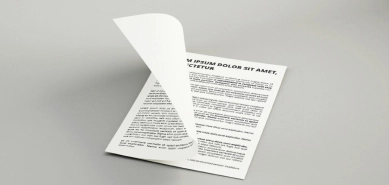
The printing will be done onone side of the sheet, leaving the back blank for writing if needed. This is usually the best option for printing posters, presentations, and more.

Double-Sided Printing

The printing will be done onboth sides of the sheet, reducing the number of sheets you will receive by half. By using less paper, you will contribute to environmental conservation, and your printed documents will take up less space. This is the most common option for extensive files with a large number of pages.

Due to the complexity of configuring 2 pages per sheet and 4 pages per sheet, both options are not compatible with automatic document rotation.

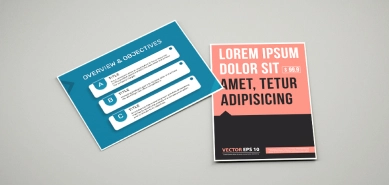
1 Page per Sheet

This is the most common printing method. Each page of your documents will be printed on one side of the paper. The only adjustment we will make is to fit them to the paper size you choose.

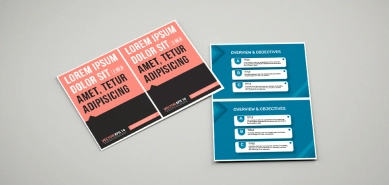
2 Pages per Sheet

We will adjust the sheet size to fit two pages of your document on each side of the paper. This way, you can significantly reduce the number of printed sheets, contributing to environmental conservation and cost savings. However, please note that this printing method reduces the page size by half, which may make reading more challenging.
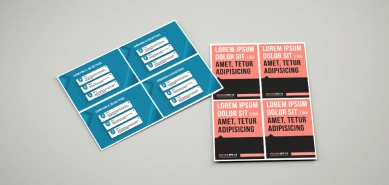
4 Pages per Sheet

We will adjust the sheet size to fit four pages of your document on each side of the paper. Please note that this option further reduces the number of printed sheets, but also shrinks the size of each printed page to one-fourth, making reading even more challenging.

Automatic Rotation

The orientation of the sheet is automatically adjusted to vertical or horizontal based on the orientation of the print file. It is recommended to enable this option for documents containing both horizontal and vertical pages.

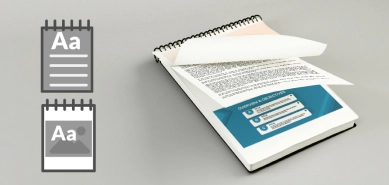
Vertical with Side Rotation

Printing is done in vertical mode, and the paper is rotated on the long side, i.e., turning the sheet to the left. This orientation is most suitable for documents with vertical pages. If you have horizontal pages and choose to enable automatic rotation, they will either be rotated to fit the full sheet size or reduced to the paper's width, leaving blank space at the top and bottom of the document.

Vertical Side Rotation without Automatic Rotation
Vertical Side Rotation with Automatic Rotation
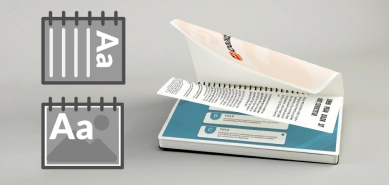
Horizontal with Upper Rotation

Printing is done in horizontal mode, and the paper is rotated on the long side, i.e., turning the sheet upwards. This orientation is most suitable for documents with horizontal pages. If you have vertical pages and choose to enable automatic rotation, they will either be rotated to fit the full sheet size or reduced to the paper's width, leaving blank space at the top and bottom of the document.

Horizontal Upper Rotation without Automatic Rotation
Horizontal Upper Rotation with Automatic Rotation
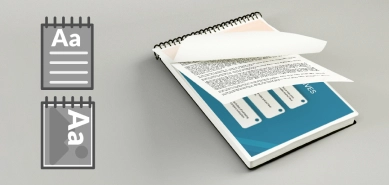
Vertical with Upper Rotation

Printing is done in vertical mode, and the paper is rotated on the short side, i.e., turning the sheet upwards. This orientation is most suitable for documents with vertical pages. If you have horizontal pages and choose to enable automatic rotation, they will either be rotated to fit the full sheet size or reduced to the paper's width, leaving blank space at the top and bottom of the document.

Vertical Upper Rotation without Automatic Rotation
Vertical Upper Rotation with Automatic Rotation
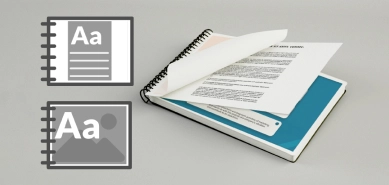
Horizontal with Side Rotation

Printing is done in horizontal mode, and the paper is rotated on the short side, i.e., turning the sheet to the left. This orientation is most convenient for documents with horizontal pages. If you have vertical pages and choose to enable automatic rotation, they will either be rotated to fit the full sheet size or reduced to the paper's width, leaving blank space at the top and bottom of the document.

Horizontal Side Rotation without Automatic Rotation
Horizontal Side Rotation with Automatic Rotation
Automatic

Your file will be automatically adjusted to the paper size you’ve selected. We’ll add a small white margin around the page as a safety measure to prevent any content from being lost during printing. This is the most commonly used option as it ensures the print fits the selected format.

No adjustments

We will print your file exactly as you send it to us, with no resizing or adjustments, regardless of the paper size you choose. This option is ideal when it’s important to preserve the original layout and margins precisely, such as with curriculum plans or other official documents. Your file will be printed in its original format, with no scaling or unexpected cropping.

Grouped

All your files will be bound together in a single volume. Please be aware that if your grouped documents exceed 400 pages, the binding will be divided into multiple volumes, always trying to make them as similar as possible and not cutting a subject in half. If this may cause any inconvenience, we recommend sending us your documents already divided, taking into account this page limit (there are no larger spirals that allow this).

Individual

Each of the files you have attached will be bound individually. Likewise, if any of them exceeds 400 pages, the binding will be divided into multiple volumes, always trying to make them as similar as possible and not cutting a subject in half. We advise you to send them to us already divided, taking into account this page limit, if receiving them divided will be inconvenient for you (there are no larger spirals that allow this).

Standard

Your front cover will be printed using the same settings as the rest of your document (if you select black and white, the cover will be black and white; if you choose color, it will be printed in color).

Color 300 g

Your document cover will be printed in color, single-sided, on 300 g cardstock. Please note that this cover is printed full bleed, meaning the design extends all the way to the edge with no white margins. This option is especially recommended for planners, journals, or teacher notebooks.

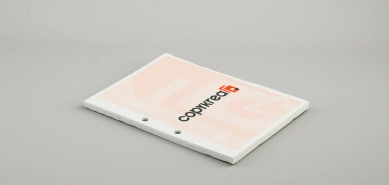
2 Holes on the Long Edge

2 holes will be punched on the long edge of each printed sheet, respecting the print orientation you selected. This means the paper will be rotated along the short edge.

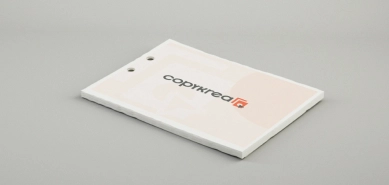
2 Holes on the Short Edge

2 holes will be punched on the short edge of each printed sheet, respecting the print orientation you selected. This means the paper will be rotated along the short edge.

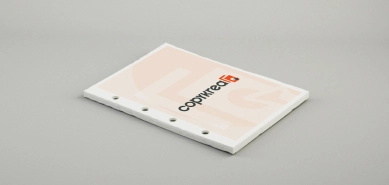
4 Holes on the Long Edge

4 holes will be punched on the long edge of each printed sheet. This means the sheet will be rotated along the long edge.

The option for 4 holes on the short edge is not available due to lack of space on the sheet.

Loose Leaf

Your files will be delivered as loose pages. This means they’ll come straight from the printer with no finishing applied.

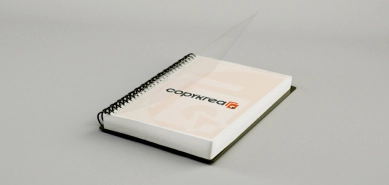
Spiral Binding

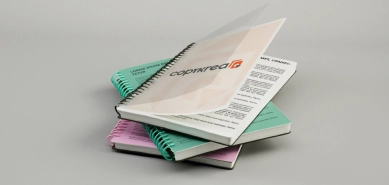
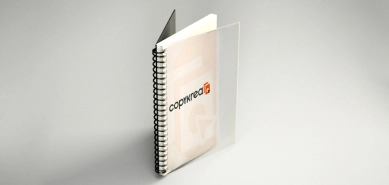
Your files will be bound into volumes using plastic spirals, along with plastic or cardstock covers (the configurator will show the material used for each cover). We offer a wide range of colors so you can fully customize your binding. Please note that each volume can hold up to approximately 400 sheets. If your document exceeds this limit, we’ll split it into multiple volumes, keeping them as balanced as possible and avoiding splitting sections whenever we can. If you prefer a different organization, we recommend uploading your files already divided according to this page limit.

Stapled

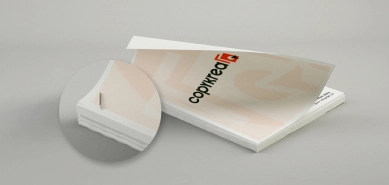
Your files will be stapled individually in the top left corner. Please note that up to approximately 100 sheets can be stapled together. If your document exceeds this limit, it cannot be stapled. We recommend organizing your files accordingly if you’d like to receive them stapled.

Preview your binding in our configurator by selecting your preferred spiral and cover colors.

Spiral Color

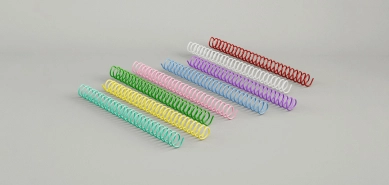
Choose from 18 plastic spiral colors to fully customize your binding. We use a 4:1 punch pattern (46 holes along the long edge). The spiral size will be selected based on the number of pages in your document.

Back Cover Color

Choose between two types of back covers: embossed cardstock or plastic.

Embossed Cardstock

Embossed cardstock covers are more durable, sturdier, and age better—making them ideal for thicker documents. Available colors: black, burgundy, navy blue, and dark green.

Plastic

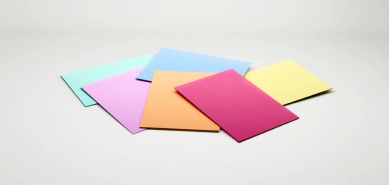
Plastic covers are lighter and thinner, offering greater flexibility. They are more water-resistant and can be easily cleaned with a damp cloth. Available colors: black, pastel pink, pastel yellow, light lilac, pastel blue, red, white, fuchsia, gray, purple, orange, green, blue, yellow, turquoise, salmon, beige, aquamarine, light green, olive green, and transparent (the transparent option matches the front cover and lets you see the last page of your document).

Front Cover Color

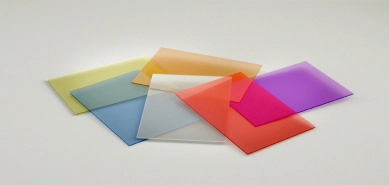
All front covers are made of plastic, offering a lightweight and flexible finish. Available options: transparent, translucent, translucent yellow, translucent blue, translucent red, translucent dark green, translucent light green, translucent orange, translucent fuchsia, translucent lilac, and translucent yellow-green. The transparent cover clearly displays your document’s front page with a glossy finish, while translucent covers soften the visibility and feature a matte look.

Some of your uploaded files may show a colored frame and a message. This helps you quickly check whether everything is ready to print or if anything needs your attention:
Blue frame
We’ve converted your file to PDF. During this process, some elements may have shifted slightly. Click the preview (eye) icon to make sure everything looks correct.
Orange frame
The file size doesn’t match your selected print format. If it’s larger, the excess will be cropped. If it’s smaller, it will be centered and white margins will be added.
Green check
You’re all set. The file size is correct and ready for printing.
Add blank sheets at the beginning (Front) or end (Back) of the file using the + and – icons. This option only applies to the file you're setting up. To do it for others, go to their settings.
Help Us Improve Your Order!

We need to clarify a detail of your order to ensure that you receive the prints just as you need them. Please confirm the following information.

Add Blank Page

Your print is double-sided, but we see that you only have single-page documents. By default, the system adds a blank page at the end of documents with odd pages to maintain their order and start on a new sheet. However, based on the type of your files, we think you might want this to be different, and the second document appears on the reverse side of the first document, i.e., combined. How do you want us to print them?

Default Each document will start on a new sheet
Combine The second document will be printed on the reverse side of the first
Help Us Improve Your Order!

We need to clarify a detail about your order to make sure you receive your prints exactly as you need them. Please confirm the following information.

Do you want to add blank pages or print multiple copies of your document?

You've added several blank pages to your document. Please note that you have selected blank (non-printed) sheets, not multiple copies of your document. If you want to print more than one copy of your file, please specify the amount using the “Number of Copies” button.

Help Us Improve Your Order!

We need to clarify a detail in your order to ensure you receive your prints just as you need them. Please confirm the following information.

Repeat the Document on the Page

Your document has only one page and you've requested multiple pages per side. Would you like us to repeat that page to fill the sheet? Otherwise, by default, your single page will be reduced in size and the rest of the sheet will be blank.

Default print only existing pages
Repeat page Repeat the page to fill the sheet
Help Us Improve Your Order!

We need to clarify a detail of your order to ensure you receive the prints exactly as you need them. Please confirm the following information.

How many copies do you need?

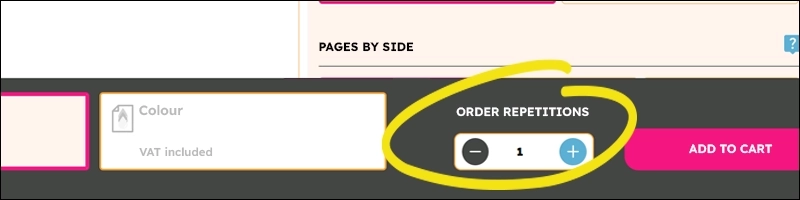
You indicated that you wanted multiple copies of some files, but when selecting grouped binding, copies must be applied to the entire set (not per individual file). If you want to receive more than one copy of the already grouped and bound file, indicate it in the “Order repetitions” button you will find at the end of the configurator. In the image below, you can see where to easily find this button.

Your product has been successfully added to the cart.